Core workflows
Run the Game with DM Screen
Keep session context, rules, campaign references, and live-table tools together while play changes direction.
GM
About 8 minutes
Open the at-table command center
- Open DM Screen from the campaign sidebar. It uses the full browser window so the working panels stay visible at the table.
- Select Session, Combat, Shopping, Travel, Social, or Broadcast from the top bar, or press 1 through 6 to switch modes.
- Press / or Mod+K to search without leaving the current mode.
- Use the back arrow when you are ready to return to the campaign workspace.
Best practice
Open DM Screen before play and keep it on a GM-only display. Set the active session and party location before the table gets busy.
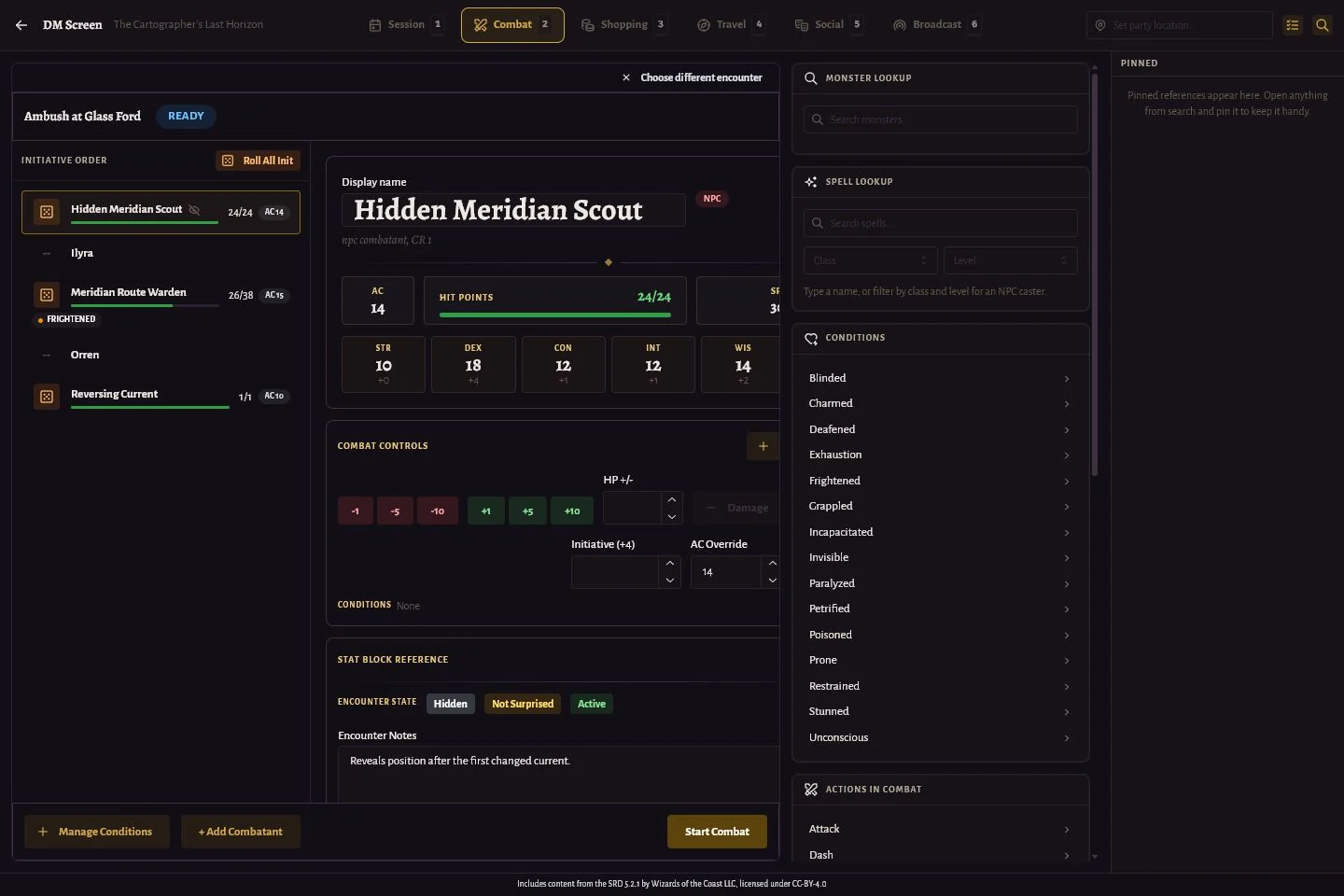
Choose the mode that matches play
- Session
- Review the active session, append quick notes, run scenes and beats, link entities, check the party, and launch linked encounters.
- Combat
- Run a prepared encounter alongside monster, spell, condition, combat-action, rules, and dice references.
- Shopping
- Search equipment and magic items, browse relevant vendors and shop inventories, and split currency.
- Travel
- Calculate travel, compare mounts, review hazards and exploration rules, see the current region, and keep encounters ready.
- Social
- Find nearby NPCs and groups, generate names, surface rumors and quests, and reference social, background, and species rules.
- Broadcast
- When OBS is enabled, monitor what is live, frame and cast maps, control pointers, and review initiative exposure.
Search once and pin what matters
- Open Search from the top bar or with / or Mod+K.
- Search across campaign entities and SRD spells, monsters, magic items, equipment, and rules.
- Select a result to open its reference drawer without navigating away from the DM Screen.
- Pin frequently used references from the drawer so they remain in the right-hand dock while you switch modes.
- Open the abilities-and-skills reference for ability definitions, skill lists, and suggested difficulty classes.
Best practice
Pin the encounter stat block, one location or NPC, and the rule most likely to interrupt play. Pins and other DM Screen selections persist per campaign on this device.
Keep live context synchronized
- Choose the active session in Session mode. Quick Notes append to that session, while scenes, links, spotlight entries, party statistics, and encounters use the same session context.
- Set the party location in the top bar. Travel, Social, and Shopping use it to surface nearby maps, relations, vendors, and places.
- Run a linked session encounter to carry it into Combat mode without searching for it again.
- Open a shop from a location reference to carry that establishment and its provisioning into Shopping mode.
- Review the active mode, session, encounter, location, shop, and pinned references when switching campaigns; DM Screen state is saved separately for each campaign on this device.
Broadcast without revealing too much
- Enable overlays under Campaign Settings, Streaming (OBS) before using Broadcast mode.
- Check Now Showing before changing the live map or encounter.
- Choose a map with an uploaded image, frame the intended area, confirm visible pins, and place the pointer or label before casting.
- Remember that the initiative overlay follows whichever encounter is currently exposed to OBS.
- Stop casting or switch sources when the scene changes.
Important
Broadcast controls change what viewers can see. Preview the complete OBS scene before play; map artwork, pin labels, pointers, portraits, combatant names, and initiative order can reveal information even when notes remain private.